





If you run a business anywhere from Chicago to the smaller towns across the Midwest, you already know the drill. Half your day gets eaten by email, meetings, and shuffling documents around. Microsoft Copilot Cowork is built to take a real chunk of that off your plate.
Here’s what makes it different from the Copilot you might already know: Cowork doesn’t just suggest things. It actually does them, start to finish. You describe what you need, it builds a plan, works through it step by step, and hands you a completed result. Not a draft. Not a recommendation. Done.
A few things set it apart under the hood:
- It runs in the cloud. Your tasks keep going even when your laptop is closed, and your files are never stored locally.
- It knows your business. Cowork taps into Work IQ, which pulls context directly from your Microsoft 365 environment, your emails, calendars, Teams messages, SharePoint, and more.
- It stays secure. Everything operates inside your existing Microsoft 365 trust boundary, so it plays by the same rules your IT team already set.
- It's flexible on models. Cowork can use different AI models depending on the task, so you're not locked into one approach.
- It's built to be cost-efficient. Usage-based billing means you pay for what you actually use, with controls to keep spending predictable.
Here’s the plain-English rundown of how it all works.
What is Copilot Cowork?

Copilot Cowork is an AI agent that lives inside Microsoft 365. The big difference from regular Copilot? It doesn’t just suggest things. It actually does them.
You tell it what you need, and it goes to work:
- Sends emails through Outlook
- Schedules meetings on your calendar
- Builds Word docs, Excel sheets, and PowerPoint decks
- Posts updates in Teams
Think of it less like a spell-checker and more like a capable coworker you can hand a task to. You stay in charge the whole time, but Cowork handles the busywork.
What are the Cowork features?
Cowork covers a lot of ground. Here’s what it can do, sorted by the kind of work you’re dealing with.
Communication
- Draft, reply to, forward, and send emails in Outlook
- Post messages in Teams channels or send direct messages
- Create and send email newsletters
- Sort your inbox into folders and clean things up
- Write polished status updates, announcements, and follow-ups
Documents and files
- Build Word, Excel, PowerPoint, and PDF files from scratch
- Edit and refine documents you share with it
- Create folders in OneDrive and SharePoint
- Reorganize your existing files
Calendar and meetings
- Schedule meetings using plain language, like "set up a 30-minute check-in with Alex tomorrow at 2 PM"
- Move events around and clear up conflicts
- Prep you for upcoming meetings with quick insights
- Give you a daily briefing so you know what's ahead
Research and search
- Search across your whole organization for files, messages, and information
- Run deep research that pulls from multiple sources into one report
- Browse your SharePoint and OneDrive folders
Automation
- Run recurring prompts on a schedule, like a Monday morning summary
- Set up tasks that trigger when something happens, such as a new email landing in your inbox
Copilot Cowork vs. Copilot Chat: key differences
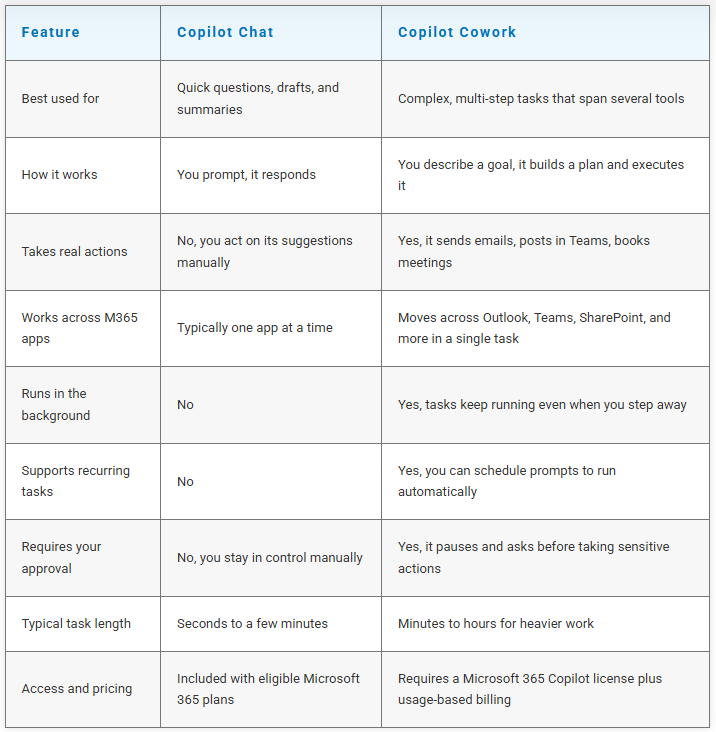
| Feature | Copilot Chat | Copilot Cowork |
|---|---|---|
| Best used for | Quick questions, drafts, and summaries | Complex, multi-step tasks that span several tools |
| How it works | You prompt, it responds | You describe a goal, it builds a plan and executes it |
| Takes real actions | No, you act on its suggestions manually | Yes, it sends emails, posts in Teams, books meetings |
| Works across M365 apps | Typically one app at a time | Moves across Outlook, Teams, SharePoint, and more in a single task |
| Runs in the background | No | Yes, tasks keep running even when you step away |
| Supports recurring tasks | No | Yes, you can schedule prompts to run automatically |
| Requires your approval | No, you stay in control manually | Yes, it pauses and asks before taking sensitive actions |
| Typical task length | Seconds to a few minutes | Minutes to hours for heavier work |
| Access and pricing | Included with eligible Microsoft 365 plans | Requires a Microsoft 365 Copilot license plus usage-based billing |
How do you use Cowork?
Nervous it’ll go rogue and email the wrong client? Don’t be. The whole thing is built around you approving each step. Here’s how a typical session goes.
- Describe your task. Tell Cowork what you want in normal language. For example: "Send a recap to my team from this morning's meeting." You can drag and drop files right into the chat.
- Watch it work. Cowork breaks your request into steps and works through them one at a time. You can follow along in the side panel and see exactly what it's doing.
- Approve actions before they happen. Before Cowork sends that email or books that meeting, it stops and asks for your go-ahead. Once you approve, it happens right away, so give it a quick look first.
- Review the results. When it's done, check the output. Download the document, look over the sent message, or ask Cowork to make changes.
Want a tip? Start with low-risk stuff like internal summaries and draft emails. Once you see how it handles your workflow, you can hand it bigger jobs.
How does Cowork pricing look like?
This part trips people up, so let’s keep it simple.
First, you need a Microsoft 365 Copilot license. That’s a flat per-user, per-month fee, and it covers the core Copilot experience across Word, Excel, Outlook, Teams, and more.
Cowork sits on top of that with usage-based billing. Instead of a flat rate, you pay for what you actually use, measured in something called Copilot Credits. The cost of each task depends on how much work it takes.
Tasks generally fall into three buckets:
- Light: Simple jobs pulling from a source or two, like a quick email draft
- Medium: Multi-source work with some real reasoning behind it
- Heavy: Big, complex tasks that dig through lots of information and produce several outputs
You also get two ways to pay:
- Pay-as-you-go: Flexible, you're charged as you use it
- Commit option: Agree to a set usage volume upfront in exchange for a discount
The nice part for budgeting? Admins can set spending limits at the company, team, or individual level, plus alerts when spend crosses a threshold. So there are no surprise bills at the end of the month.
Ready to put Cowork to work for your business?

Cowork handles the coordination. You handle the calls that actually need a human. If your team already lives in Microsoft 365, the foundation is already there. As a Microsoft Partner, iwx can help you figure out where to start, what to watch, and how to scale it in a way that fits your business, not just the product sheet. Start with one workflow. Build from there.